




Installing an accessibility plugin on a WordPress website adds an instant tool that visitors can use to adjust text size, contrast, colour modes, and reading tools. Beech uses the Elementor Accessibility Plugin on client websites, including Creating Adventures, a Warrington charity we’ve sponsored since 2020. This walkthrough shows exactly what visitors experience.
Making a website more accessible can be easy to achieve. Installing a dedicated accessibility plugin handles much of the technical work for us, giving visitors real control over how they experience content. In our previous accessibility post, we covered three accessibility fixes for website owners to try.
In this post, we’re sharing how the Elementor Accessibility Plugin works and how it can automatically improve a website experience for visitors.
We recommend this plugin for WordPress websites. It’s straightforward to install, requires minimal configuration, and gives visitors the right tools to customise their experience.
Installing the plugin and what it looks like
When the plugin is active on a website, visitors will see a small floating icon, typically positioned in a corner of the page.
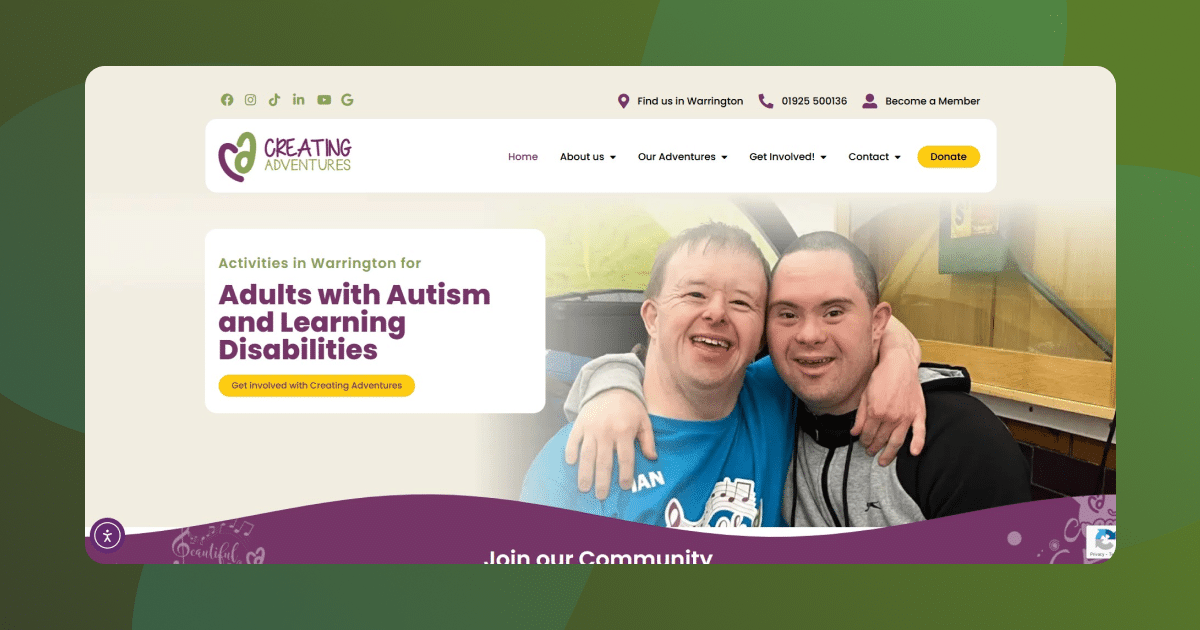
This icon is customisable, we can choose the colour, size, and position to match a site’s design. The goal is for it to be noticeable without dominating the page, and many websites place it in the bottom right or bottom left corner.
When visitors click the icon, they gain access to a suite of accessibility tools. None of these changes affect a site’s underlying code or design. They only change how individual visitors experience the content, creating a fully unique customer experience.
How the accessibility plugin adapts to visitor needs
Opening the widget
Clicking the icon opens an accessibility menu, which appears as a clean panel with several options organised into categories.

One click gives visitors instant access to accessibility tools. From this single menu, they can adjust how they experience the website without leaving the page or refreshing. They can also use this widget to revert any changes they decide to make.
Changing text size and layout
The plugin includes controls to increase or decrease text size across the entire website. Visitors can make text bigger or smaller based on their needs.

This is especially useful for users with reduced vision or anyone who finds the default text size difficult to read. It’s also helpful for users on mobile devices who want to enlarge text for easier reading.
As well as sizing, visitors can change the formatting of text to improve overall readability. This includes:
- Increasing the line height
- Changing the alignment
- Reverting to a more readable font.

Adapting colour contrast options
Multiple viewing modes help users with different visual needs adapt a website to improve readability. While some users benefit from high contrast, others prefer greyscale.
The plugin offers various contrast settings to accommodate different visual needs. High contrast mode increases the difference between text and background, and greyscale mode removes all colour from the website.


Colour-blind users may find certain modes easier to navigate. Offering these options expands the number of people in our target audience who can use the website effectively.
Helping visitors read the content
Readability is an essential part of any website, as it helps to determine if the content on each page will be well-received by our target audience.
With this widget, visitors have the opportunity to focus on content and reduce distractions, such as animations or graphics on screen. Here are some of the ways it can be used:
1. A reading mask highlights the current line or paragraph you’re reading.

2. An image hiding option removes all images from the page, which helps users with additional needs who find images distracting.

3. Links and calls to action can be easily identified through the Highlight links option, making navigation simpler for visitors.

These extra tools help users focus on content and reduce distractions. A visitor with ADHD might use the reading mask to maintain focus, and someone with additional needs might hide images to process information more effectively.
These aren’t necessary features, but for those who need them to understand our content, they’re essential.
Showing good governance with an accessibility statement
Another benefit of the Elementor plugin is the ability to integrate an accessibility statement, which is accessible directly from the widget. This statement appears on the site and outlines the accessibility features available to visitors and also explains how visitors can contact us if they encounter barriers.
For extra insight, you can read the one on our website here.


Transparency about an accessibility commitment builds trust with visitors and demonstrates that we’ve thought intentionally about accessibility rather than treating it as an afterthought.

Why accessibility matters for a stronger user experience
In our previous post, we covered three manual accessibility improvements:
- Colour contrast
- Content structure
- Media optimisation.
Those changes form the foundation of a truly accessible website. Then, a plugin like Elementor’s adds an extra layer by giving users additional control over how they experience the website.
We’d recommend an approach using both of these guides. A website with accessibility built into its design immediately feels inclusive and trustworthy, and the option to change the user experience through a plugin then gives visitors the flexibility to adjust further based on their individual needs.
Together, these approaches significantly expand who can use a website, and significantly increases the likelihood of them staying there, and potentially converting.
For more insight into the benefits of accessible website design, and making permanent inclusive changes, feel free to read this in-depth guide.
Ready to make your website more accessible?
When installing the Elementor Accessibility Plugin, it handles the technical setup automatically, making it a simple addition to any website for values-led organisations.
If you’d like some help with this, we can install and configure it for you for free, customise it to match your brand, and ensure it’s working properly across your entire website.
To add this plugin to your WordPress website or to discuss other accessibility improvements, send our team a message and let’s chat about the possibilities.